

Trace: • Editor features
This is an old revision of the document!
Our editors have some hidden features which can be enabled. We don't enable all features automatically because it depends on UX which features make sense. We have a copy-to-clipboard feature:
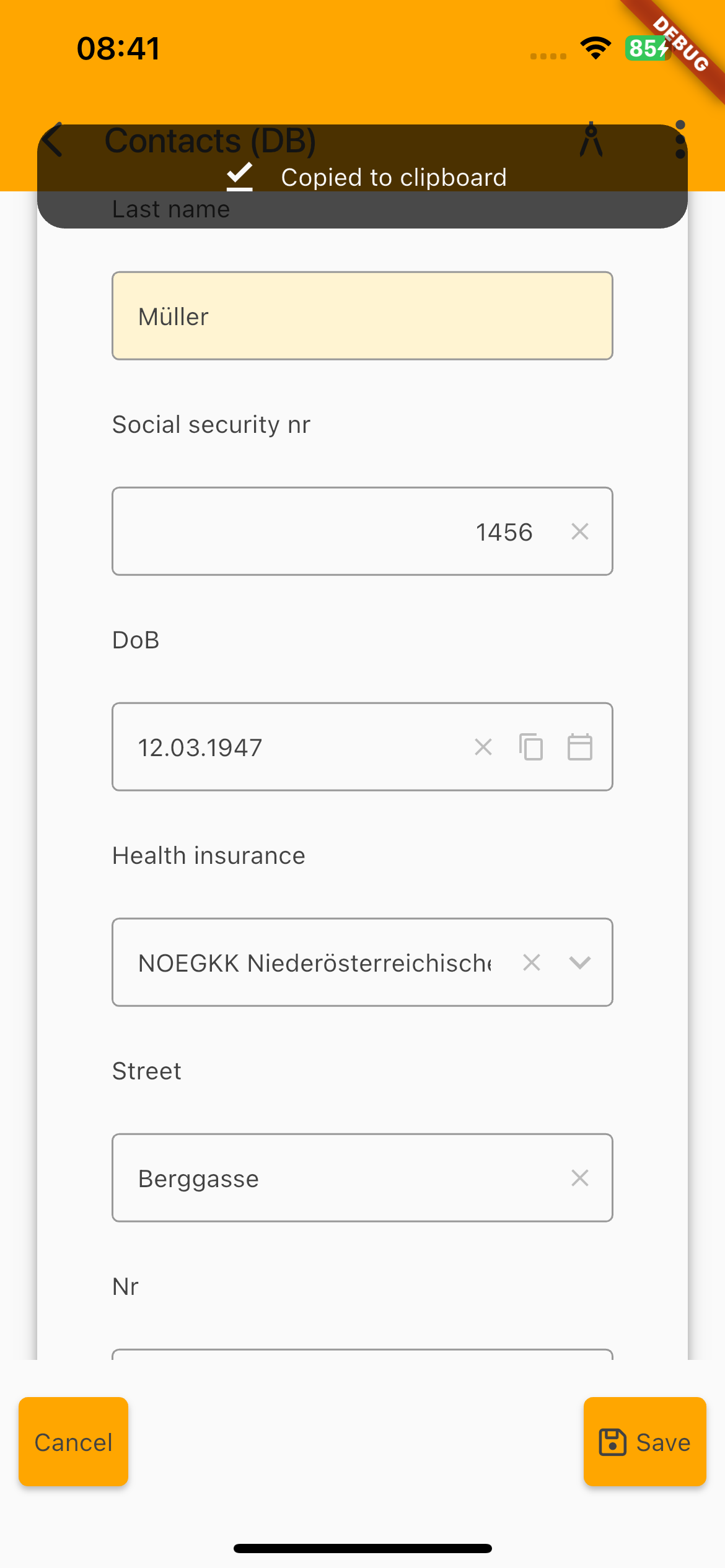
The DoB field is a date field and on the right, you have 3 icons:
- x = delete
- copy text to clipboard
- open date chooser
The copy text to clipboard icon is optional and can be enabled for every editor. Simply add the style
f_copy
to your (cell)editor. After pressing the icon, a small info bar will appear: Copied to clipboard
If you have password fields, it's usually helpful to show the password in plain text. By default we don't show plain text passwords, but we have a feature for you:
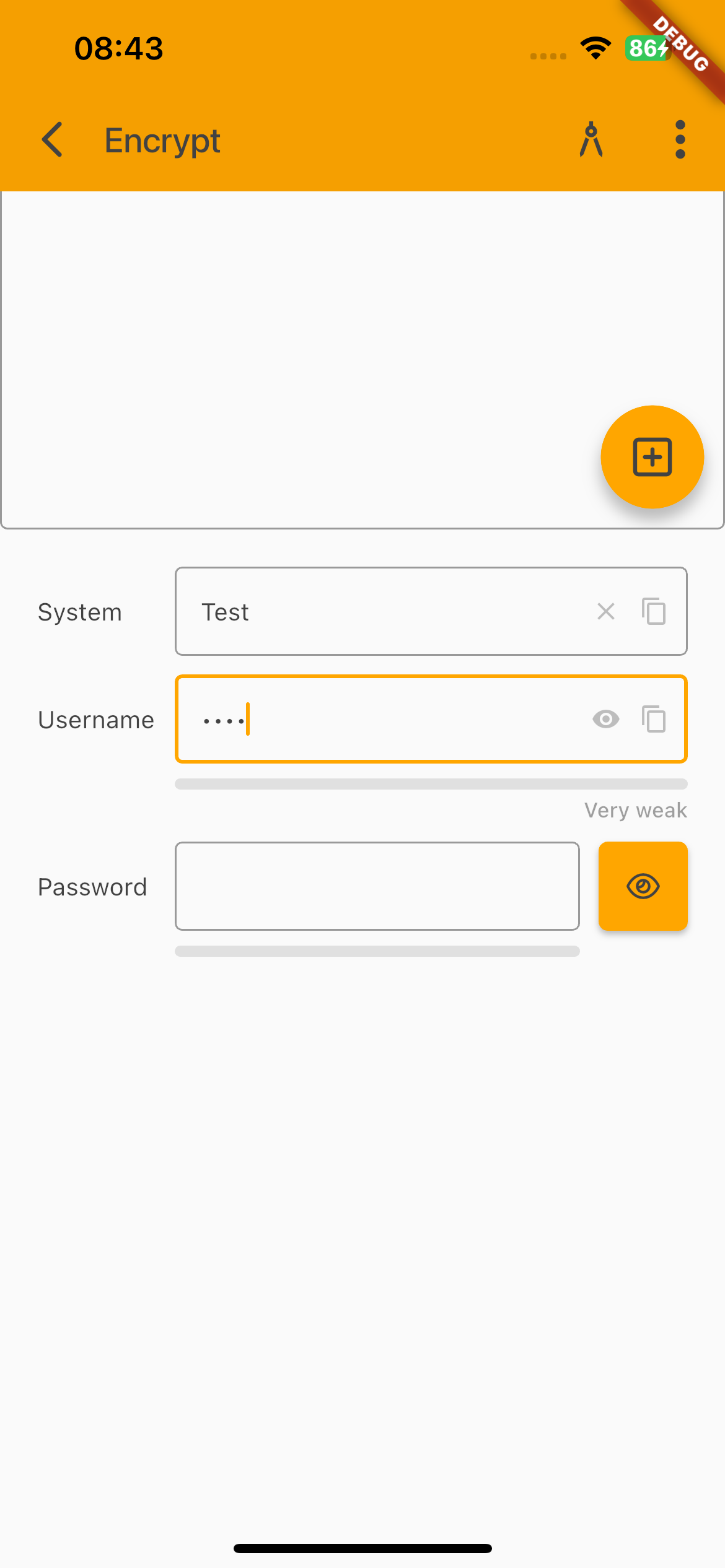
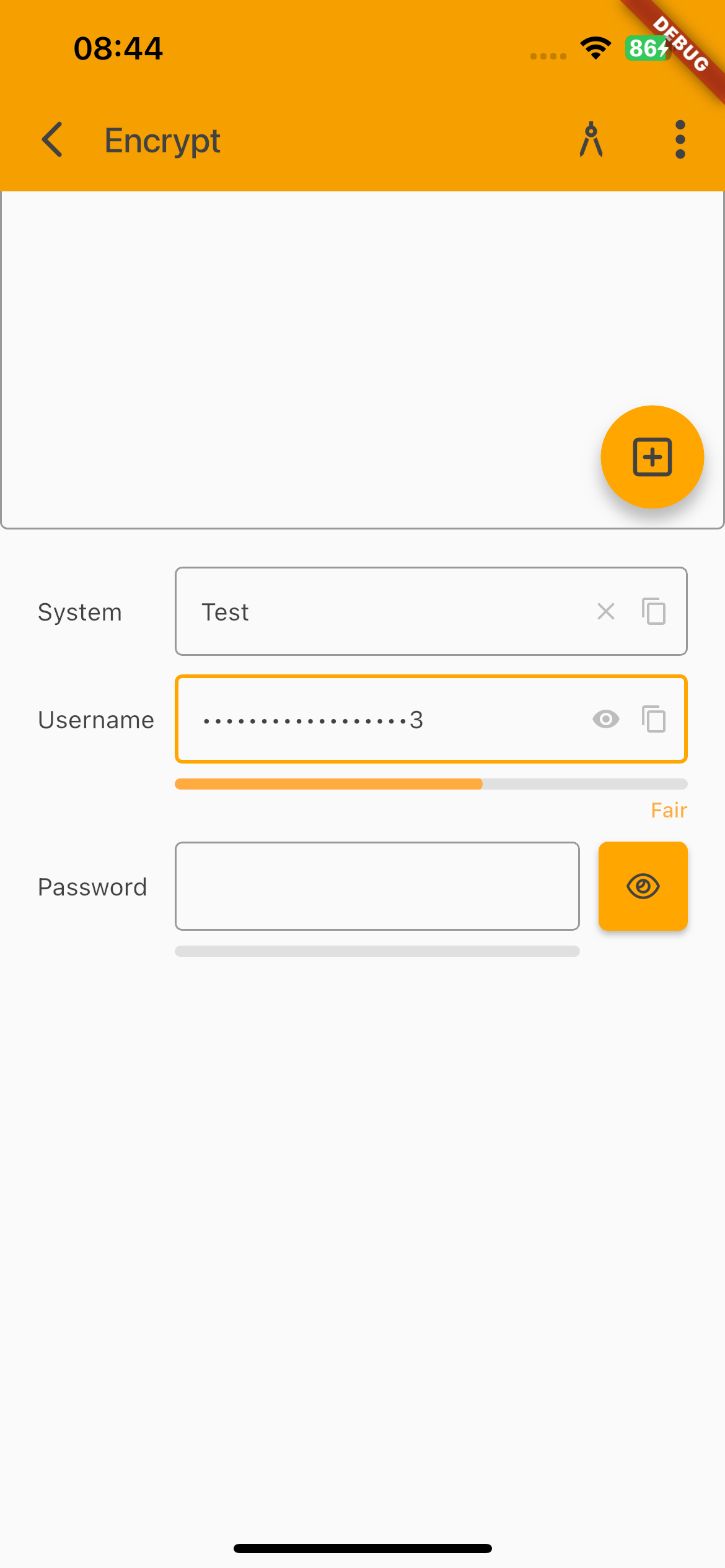
The password field shows the optional icons:
- show plain text
- copy text to clipboard
If you show the plain text the password will be shown in plain text until you click the icon again or until you press a key. The screenshot shows another additional feature. Below the password field, you can see a gray bar. This bar will show the strength of your password.
We calculate a score for your password:
- length >= 6 (+ 0.2)
- length >= 10 (+ 0.2)
- A-Z (+ 0.2)
- 0-9 (+ 0.2)
- All except: A-Z and a-z and 0-9 (+ 0.2)
The score will be translated to the password strength:
- Very weak (score ⇐ 0.2)
- Weak (score ⇐ 0.4 )
- Fair (score ⇐ 0.6)
- Good (score ⇐ 0.8)
- Strong (score > 0.8)
The text will be shown below the gray bar.
To enabled the password scrength, simply add:
f_passwordstrength
as style.